Welcome to the ultimate, expanded guide for setting up and mastering your Fitbit Versa ! This comprehensive tutorial will walk you through every critical step—from unboxing and charging to advanced health tracking, voice assistant integration, and long-term device maintenance—ensuring you maximize the potential of your new smartwatch.
Step 1: Unboxing and Physical Preparation
The setup process starts with proper unboxing and initial inspection. Inside the packaging, you will find:
- The Fitbit Versa smartwatch unit.
- Classic wristbands in two sizes (Small and Large) to fit different wrist circumferences comfortably.
- A proprietary USB charging cradle.
- Quick start instructions and safety documentation.
Charging Your Device:
Before initiating software configuration, ensure your Versa has a full battery charge. Locate the charging pins on the underside of the watch body and align them with the spring-loaded pins inside the charging dock. Squeeze the sides of the dock to open the clip, insert the watch, and release to lock it into place. Plug the standard USB-A end into a powered computer port or an official UL-certified USB wall charger. An animated battery icon on the display indicates charge progress. A full charge generally requires between 60 to 120 minutes.
Step 2: App Installation and Bluetooth Pairing
To sync metrics and unlock connectivity features, connect your Versa to a compatible iOS or Android mobile device.
-
Enable Bluetooth: Turn on Bluetooth in your smartphone’s system settings menu.
-
Download the App: Search for “Fitbit” in the Apple App Store or Google Play Store and install the official app.
-
Account Setup: Open the Fitbit app. Select “Join Fitbit” if you are a new user, or log in with your existing account credentials. Input accurate personal data including height, weight, biological sex, and age. This accurate baseline is vital for calculating basal metabolic rate (BMR), calorie expenditure, and cardiovascular effort levels.
-
Device Pairing: Tap your profile icon in the top corner, choose “Set Up a Device”, and select “Versa 3” from the model directory.
-
Code Verification: The app will scan for your smartwatch. Once detected, a four-digit numeric PIN will appear on the Versa 3 display. Type this code into your phone screen to confirm secure pairing.
-
Wi-Fi Network Connection: Follow the prompt to connect your Versa to a home Wi-Fi network (2.4 GHz required). Wi-Fi connectivity speeds up firmware updates, music downloads, and app installations.
Step 3: Customizing Watch Faces and Apps
Now that your Versa is connected, it’s time to make it truly yours! Open the Fitbit app on your phone and tap on the “Today” tab, then your profile picture in the top left corner, and finally, the Versa 2-3 icon.
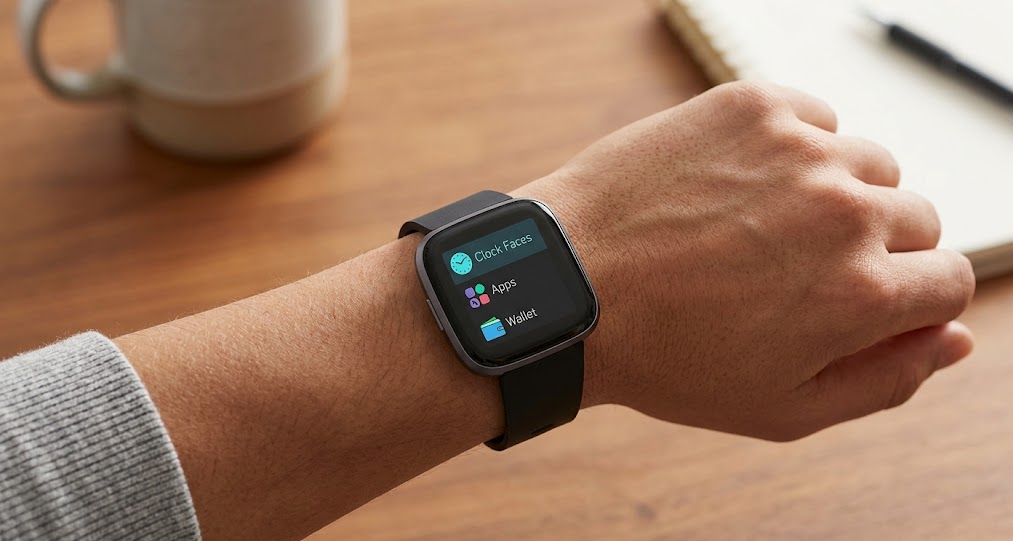
From here, you can access a plethora of options to customize your watch face. Tap “Clock Faces” to explore the diverse library of designs available. You can filter by categories like minimal, modern, activity-focused, and many more. Once you find a face you love, simply tap “Select” and then “Install” to apply it to your device.
The Versa also supports various apps to enhance its functionality. Tap “Apps” in the device settings to explore the app gallery. From news and weather updates to music streaming and guided workouts, there’s an app for almost everything. Discover and install apps that align with your lifestyle and goals.
Step 4: Setting Daily Activity Goals and Notifications
Tailor the tracking parameters to keep yourself motivated throughout the day:
-
Activity Benchmarks: Navigate to “Account Settings” > “Goals” to set daily targets for step count, total distance, active zone minutes, burned calories, and hourly movement reminders (which encourage taking at least 250 steps every hour).
-
Smart Notifications: Tap “Notifications” in the device menu to allow mirrored alerts for incoming calls, text messages, calendar appointments, and app notifications. Android users can also write and save customized quick-reply text templates directly within the app.
Step 5: Advanced Health and Wellness Features
Your Versa 2-3 goes beyond simple step counting. Utilize these advanced sensor capabilities for holistic health tracking:
-
24/7 PurePulse Heart Rate Tracking: Continuously records your heart rate to analyze your resting heart rate over time and determine cardio fitness scores.
-
Sleep Stage & Sleep Score Analysis: Wear the watch to bed to receive detailed breakdowns of time spent in Light, Deep, and REM sleep phases. The algorithm assigns a daily Sleep Score (0–100) based on sleep duration and restlessness.
-
Built-in Amazon Alexa: Press and hold the side button for two seconds to activate the voice microphone. Ask Alexa to set countdown timers, create grocery lists, check local weather, or command smart home devices.
-
Fitbit Pay: Store credit or debit card details in the encrypted Fitbit Wallet app to make seamless contactless transactions at point-of-sale payment terminals.
-
Music Streaming & Offline Storage: Store up to 300+ personal MP3 files directly on the watch, or manage playback through Spotify and Deezer companion apps.

Step 6: Maintenance, Troubleshooting, and Battery Care
To maximize the longevity of your Fitbit Versa :
-
Cleaning: Clean the device and wristband regularly with a soap-free cleanser or mild alcohol wipe, especially after sweaty workouts or swimming. Ensure the charging contacts remain dry and free of debris.
-
Device Restart: If you experience syncing issues, responsiveness lags, or sensor freezes, perform a restart by pressing and holding the side button for 10 seconds until the Fitbit logo appears on the screen.
-
Firmware Updates: Periodically check for updates in the Fitbit app under your device profile to receive security patches, performance improvements, and feature updates.
Contact: earbudsexpert724@gmail.com
Your Fitbit Versa 2 setup is complete! By configuring your personalized profile, customizing notifications, and leveraging advanced metrics like sleep analysis and voice commands, you now have a powerful tool on your wrist to support your long-term health and fitness goals.